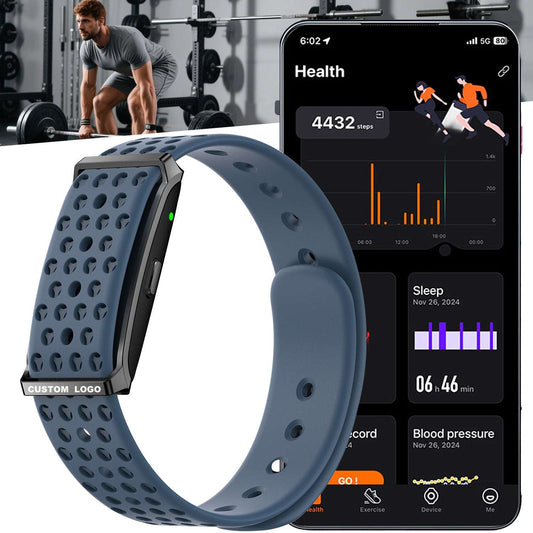

Why Is My Fitness App Not Tracking Steps? Fix It Fast
You know that feeling. You just crushed a 30-minute walk—felt great, got your heart pumping. You pull out your phone to log it, and… nothing. Zero steps. Blank distance. Heart rate stuck on some random number from three hours ago.
Super annoying, right?
If you've ever stared at your fitness app wondering why it's not tracking your activity, trust me—you're not alone. Thousands of people deal with fitness tracker sync issues every single day. Whether you're using a phone app or a wearable device, tracking glitches can make you feel like your workout never even happened.
Here's the good news: most of the time, it's not broken hardware. It's usually a setting that got flipped, a permission that got turned off, or just a simple misunderstanding of how these gadgets actually work.
In this post, I'll walk you through the most common reasons your fitness app isn't tracking, how to fix them, and—if you're a brand looking to source wholesale fitness trackers—what to look for in a reliable manufacturer so your customers don't end up with these headaches.
1. App Permissions & OS Settings: The Usual Suspects
Let me paint you a picture. You've been walking all morning, but your app still shows a big fat zero. Nine times out of ten, the problem isn't the app itself—it's your phone's operating system quietly cutting off access to the sensors it needs.
Both iOS and Android have gotten pretty aggressive about battery life. They'll often put apps into "sleep" mode if they think they're draining power. Great for battery life, not so great for step tracking.
Motion & Fitness Access

Fitness apps rely on your phone's built-in accelerometer and gyroscope to detect movement. If the app doesn't have permission to use those sensors, it's basically flying blind.
For iPhone users: Head to Settings > Privacy & Security > Motion & Fitness. Make sure the toggle for your fitness app is on. Also double-check that Background App Refresh is enabled for the app under General. I've seen so many cases where people accidentally turn this off while cleaning up settings.
For Android users: Go to Settings > Apps > [Your App] > Permissions. Ensure "Physical activity" is allowed. Then search for "Battery optimization," find your app, and set it to "Unrestricted." This stops Android from killing the app mid-workout—something that happens way more often than you'd think.
Location Services Matter—Even for Steps
Here's something that trips people up: many apps need location access to calculate distance accurately. Even if you're just counting steps, the app might use GPS to figure out stride length or map your route. If your distance tracking is off or missing, location permissions are often the culprit.
Let me break down some common symptoms and what they usually point to:
App shows 0 steps? This almost always means your motion sensors are disabled. Head straight to those Motion & Fitness (iOS) or Physical activity (Android) settings we just covered. Nine times out of ten, that's the fix.
Distance is way off or missing? GPS signal is the likely issue. Make sure "Precise Location" is turned on for your app, and try to start your workout in an open area away from tall buildings. I've had runs where my distance looked like I was zigzagging across town just because I started under a tree.
App stops tracking mid-workout? Battery saver mode is probably the culprit. Double-check that your app is set to "Unrestricted" battery usage so your phone doesn't kill it in the background. Android is especially bad about this—it's like the phone thinks, "Oh, you're exercising? Let me just shut that down to save power."
2. Hardware & Placement: It's Not Always Software
Sometimes the problem has nothing to do with your phone's settings—it's about where you keep your device or how you wear your tracker. And honestly, this one trips up even experienced users.
GPS Signal Struggles

If you run or walk near tall buildings, dense trees, or even in certain weather, your GPS signal can get blocked or bounce around. That leads to "GPS drift," where your route looks like a messy scribble and your distance is completely off. It's called the urban canyon effect, and it's a real pain. I've had runs where my watch said I ran 4 miles but my phone's map showed me running through buildings and crossing rivers. Not exactly reliable.
Where You Carry Your Phone
If you're using a phone-based app, placement matters more than you think. And I'm not just being picky—it actually makes a difference.
What to avoid: Holding it in your hand (the swinging motion confuses the accelerometer) or burying it deep in a backpack (GPS signal gets blocked).
What works best: Use an armband or keep it in a front pocket. That gives the GPS a clear view of the sky and keeps the sensors stable. Trust me, switch from hand to armband and you'll see your step count become way more consistent.
The Wearable Factor
If you're using a fitness tracker watch, the issue might be how it sits on your wrist. This is one of those things that sounds too simple, but it fixes a ton of problems.
If the band is too loose: Optical heart rate sensors need consistent skin contact. When the band is loose, light leaks in and messes up the readings. You'll see your heart rate jump from 80 to 160 for no reason. Just tighten it up a notch.
If the sensor is dirty: Sweat, sunscreen, or dirt on the sensor lens can block the signal. A quick wipe with a cloth often does the trick. I keep a microfiber cloth in my gym bag just for this.
3. Syncing Problems: When Your Device and App Stop Talking
You see steps on your wrist, but your phone shows nothing. This is probably the most common complaint we hear—and it's almost always a sync issue. It's like your devices are in a fight and refusing to talk to each other.
Bluetooth Handshake
Your fitness band stores data locally until it connects to your phone via Bluetooth. If Bluetooth is glitchy or the app is closed, the data never transfers. It's like leaving your mail in the mailbox and never bringing it inside.
The fix: Toggle Bluetooth off and on. Force-close the app and reopen it. That often kicks off a manual sync. If that doesn't work, try unpairing and repairing the device—it's a pain, but it usually gets things talking again.
How Data Actually Flows
To understand syncing, think of it like a chain. If any link breaks, the whole thing falls apart:
- Sensors capture your movement.
- Device memory holds the data if your phone isn't nearby.
- Bluetooth transmits data from band to phone.
- Mobile app processes and displays it.
- Cloud backs it up (if applicable).
If the chain breaks at Bluetooth, you get sync errors. And honestly, Bluetooth can be finicky—interference from other devices, walls, even your own body can mess with it.
Multiple Data Sources
Modern health apps pull data from multiple places: your phone, your watch, even third-party apps. Sometimes they get confused about which source to trust. Your phone might think, "Well, the watch says 5,000 steps but my internal sensors say 4,000—I'll go with the lower number just to be safe." That's not how it actually works, but you get the idea.
The fix: Check your app's data source settings. In Apple Health, for example, you can prioritize which device's data counts for steps and distance. Make sure your wearable is at the top of the list.
4. Why Accuracy Matters for Your Brand (B2B Perspective)
If you're a brand looking to enter the fitness tracker wholesale market, all these user frustrations point to one thing: hardware quality directly impacts customer satisfaction. I've seen companies get flooded with returns and support tickets just because they skimped on the sensors.
When you partner with a manufacturer for ODM fitness tracker services, you're not just buying a shell and a screen. You're buying the accuracy of the pedometer, the stability of the Bluetooth chip, and the reliability of the heart rate sensor. Cheap components lead to a flood of support tickets asking, "Why isn't this thing tracking right?" And that's bad for business.
What Sets Quality Trackers Apart
Let me give you a quick rundown of what separates the good from the not-so-good.
Step Counting Accuracy
Low-quality trackers often miscount steps because they pick up random arm movements—like brushing your teeth or waving at a friend. You end up with 2,000 "steps" from just sitting on the couch. Quality trackers use algorithm-based filtering that actually distinguishes walking motion from casual gestures. It's not magic, just better engineering.
Bluetooth Sync Stability
Cheaper chipsets are known for frequent dropouts and limited range. You'll see customers complaining that their data only syncs when they hold the tracker right next to the phone. A quality tracker features stable Bluetooth 5.2/5.3 connectivity with auto-reconnect, so data syncs reliably every time—even if the phone is in another room.
Heart Rate Sensor Performance
Generic sensors tend to respond slowly and get thrown off by movement. You'll get spikes and dips that make no sense. High-quality optical sensors include motion artifact rejection, giving you accurate readings even during intense workouts. It's the difference between a sensor that guesses and one that actually measures.
Battery Life Optimization
Running GPS constantly drains batteries fast on cheap devices. You might get 4 hours of GPS tracking, which is useless for anyone doing long hikes or marathons. Quality trackers use optimized power management to stretch battery life without sacrificing performance. Some of our clients get 20+ hours of GPS tracking on a single charge.
By sourcing bulk fitness trackers from a reliable manufacturer like fitnesstrackerchina.com, you reduce buyer frustration and build a reputation for quality. Whether you need custom fitness trackers for a corporate wellness program or white label fitness bands for direct sales, prioritizing tracking accuracy is the key to keeping customers happy and reducing returns. And honestly, in this market, word of mouth spreads fast—good or bad.
5.Frequently Asked Questions
Q1: Why does my fitness app show zero steps even though I've been walking?
A1: Almost always a permission issue. Check that your app has access to motion sensors (iOS: Motion & Fitness, Android: Physical activity). Also make sure battery saver mode isn't killing the app in the background. I've had friends spend weeks thinking their tracker was broken when it was just a setting.
Q2: My wearable shows steps, but they don't show up in the app. How do I fix sync?
A2: First, make sure Bluetooth is on. Force-close both the app and Bluetooth, then reopen. Sometimes there's a delay of 10–15 minutes depending on the platform. You can also try unpairing and repairing the device—it's annoying but it works.
Q3: Why is my heart rate reading so random or inaccurate?
A3: Usually due to poor sensor contact. Make sure the band is snug (not too tight) and positioned about a finger's width above your wrist bone. Sweat, dirt, or tattoos can also interfere—clean the sensor lens regularly. Tattoos are a surprisingly common issue, especially dark ink.
Q4: Why does my distance look wrong when I run near buildings?
A4: That's the "urban canyon effect." Tall buildings can block or bounce GPS signals, causing inaccurate tracking. For best results, try to start your workout in an open area and give the GPS a few seconds to lock on. If you're in a city, expect some drift—it's just physics.
Q5: I'm a brand looking for bulk orders. Do you offer samples to test accuracy?
A5: Yes, absolutely. At fitnesstrackerchina.com, we encourage potential clients to order samples first. We specialize in OEM/ODM services and can customize firmware to prioritize step accuracy and sync stability based on your market needs. Just reach out to our sales team for a wholesale catalog and sample pricing. We'd love to help you build something great.